Show the code
pacman::p_load(lubridate, tidyquant, ggHoriPlot,
timetk, ggthemes, plotly, tidyverse)By the end of this hands-on exercise, you will be able to:
For the purpose of this hands-on exercise, the following R packages will be used.
pacman::p_load(lubridate, tidyquant, ggHoriPlot,
timetk, ggthemes, plotly, tidyverse)tidyquant integrates resources for collecting and analysing financial data with the tidy data infrastructure of the tidyverse, allowing for seamless interaction between each.
In this section, you will learn how to extract the daily stock values of a selected stocks from Yahoo Finance by using tidyquant.
Step 1: We will import a pre-prepared company list called companySG.csv onto R. The list consists of top 45 companies by market capitalisation in Singapore. However, we just want the top 40.
company <- read_csv("data/companySG.csv")Top40 <- company %>%
slice_max(`marketcap`, n=40) %>%
select(symbol)Step 2: tq_get() method will be used to extract daily values of these stocks from Yahoo Finance via APIs. The time period for the data was set from 1st January 2020 to 31st March 2021. The data are specified to be returned in daily intervals.
Stock40_daily <- Top40 %>%
  tq_get(get = "stock.prices",
         from = "2020-01-01",
         to = "2023-03-01") %>%
  group_by(symbol) %>%
  tq_transmute(select = NULL,
               mutate_fun = to.period,
period = "days")In this section, you will learn how to plot a horizon graph by using geom_horizon() of ggHoriPlot package.
Stock40_daily %>%
  ggplot() +
  geom_horizon(aes(x = date, y=adjusted), origin = "midpoint", horizonscale = 6)+
  facet_grid(symbol~.)+
  theme_few() +
  scale_fill_hcl(palette = 'RdBu') +
  theme(panel.spacing.y=unit(0, "lines"), strip.text.y = element_text(
    size = 5, angle = 0, hjust = 0),
    legend.position = 'none',
    axis.text.y = element_blank(),
    axis.text.x = element_text(size=7),
    axis.title.y = element_blank(),
    axis.title.x = element_blank(),
    axis.ticks.y = element_blank(),
    panel.border = element_blank()
    ) +
  scale_x_date(expand=c(0,0), date_breaks = "1 month", date_labels = "%b%y") +
ggtitle('Daily Adjusted Prices (Jan 2020 to Mar 2022)') 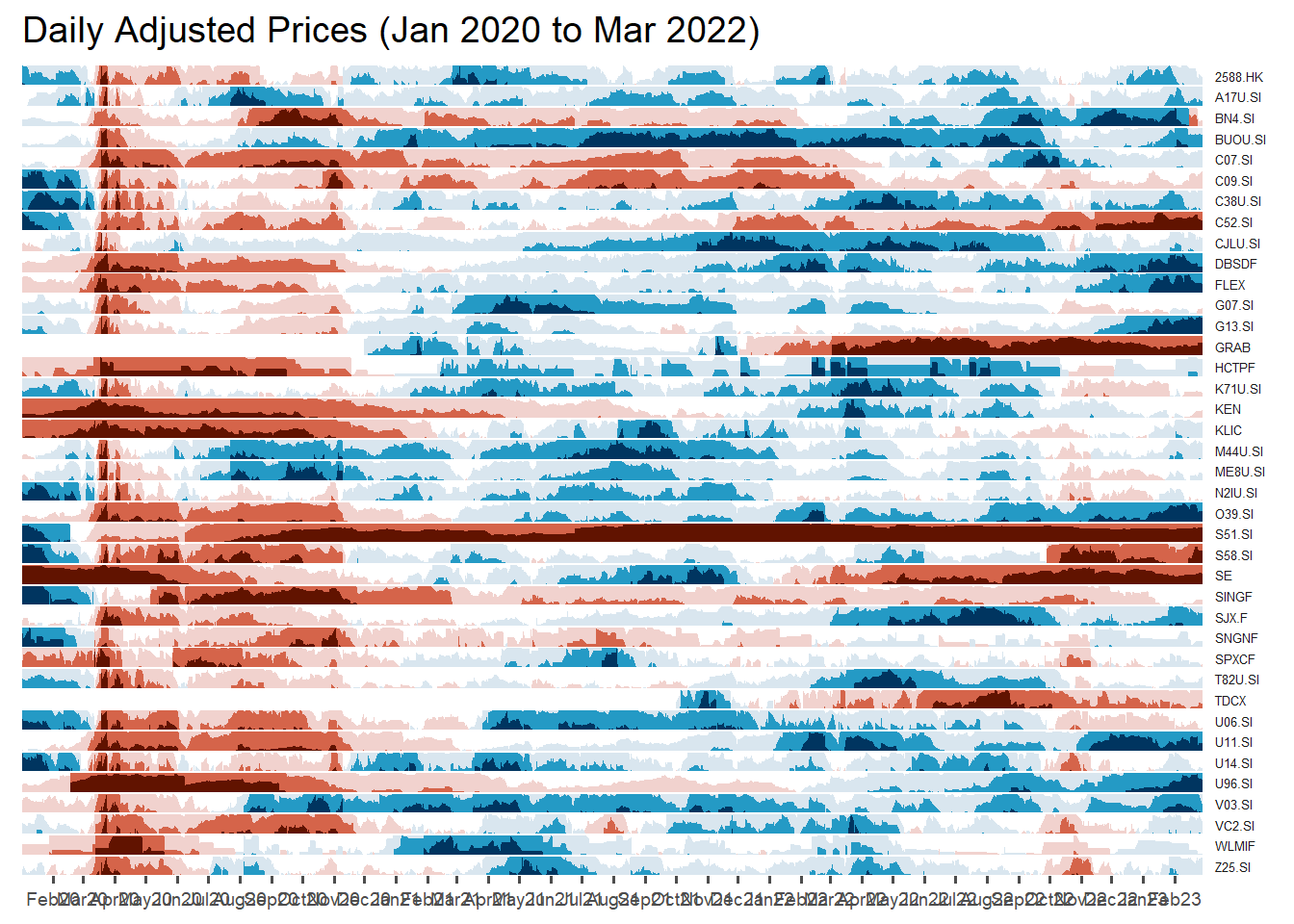
Step 1: left_join() of dplyr package is used to append fields from company data.frame onto Stock_daily data.frame. Next select() is used to select columns 1 to 8 and 11 to 12.
Stock40_daily <- Stock40_daily %>%
  left_join(company) %>%
  select(1:8, 11:12)
Step 2: geom_vline() is used to add the vertical reference lines.
Stock40_daily %>%
  ggplot() +
  geom_horizon(aes(x = date, y=adjusted), origin = "midpoint", horizonscale = 6)+
  facet_grid(Name~.)+ #<<
  geom_vline(xintercept = as.Date("2020-03-11"), colour = "grey15", linetype = "dashed", size = 0.5)+ #<<
  geom_vline(xintercept = as.Date("2020-12-14"), colour = "grey15", linetype = "dashed", size = 0.5)+ #<<
  theme_few() +
  scale_fill_hcl(palette = 'RdBu') +
  theme(panel.spacing.y=unit(0, "lines"),
        strip.text.y = element_text(size = 5, angle = 0, hjust = 0),
    legend.position = 'none',
    axis.text.y = element_blank(),
    axis.text.x = element_text(size=7),
    axis.title.y = element_blank(),
    axis.title.x = element_blank(),
    axis.ticks.y = element_blank(),
    panel.border = element_blank()
    ) +
  scale_x_date(expand=c(0,0), date_breaks = "1 month", date_labels = "%b%y") +
ggtitle('Daily Adjusted Prices (Jan 2020 to Mar 2022)') 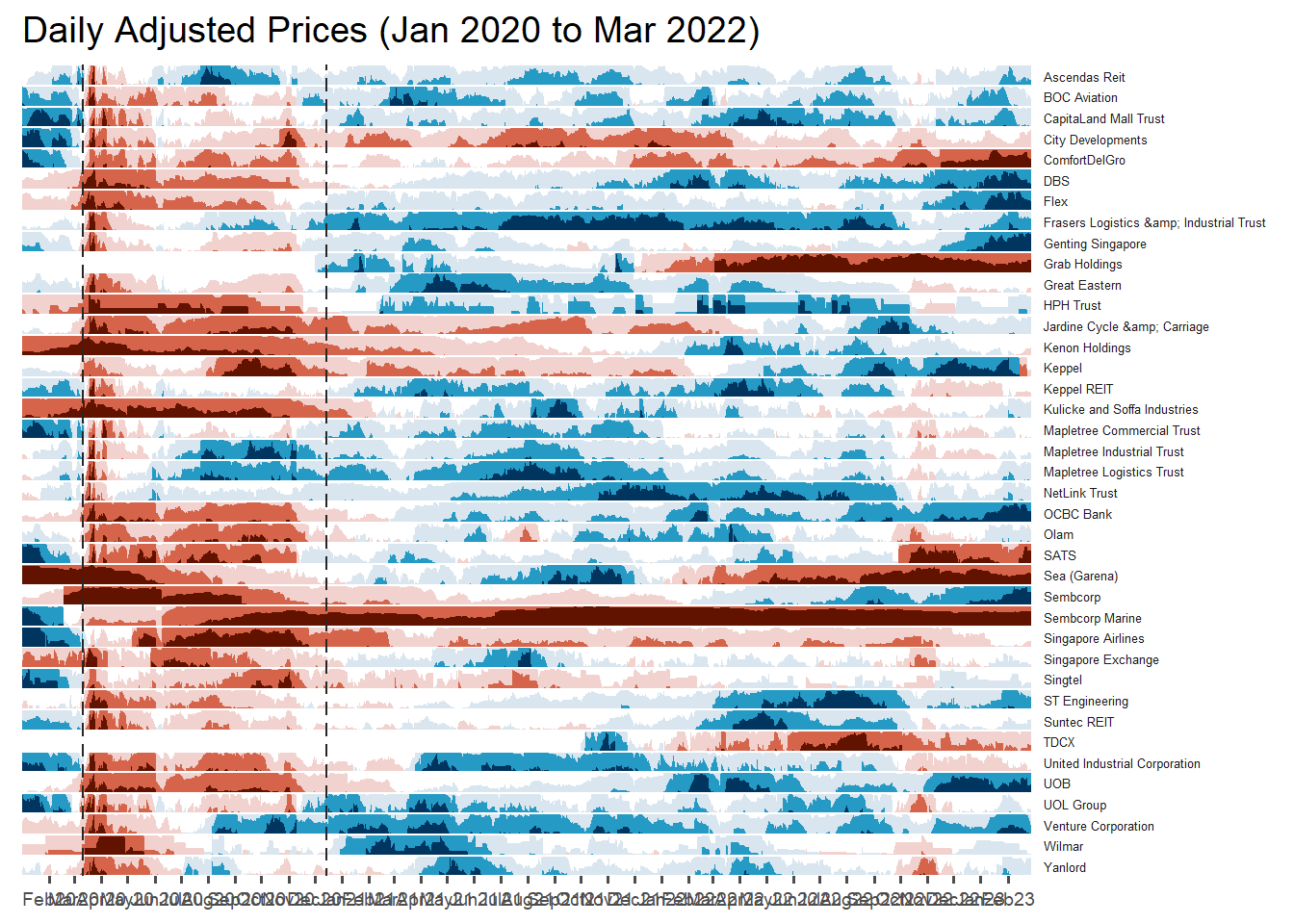
In the code chunk below, geom_line() of ggplot2 is used to plot the stock prices.
Stock40_daily %>%
  filter(symbol == "DBSDF") %>%
  ggplot(aes(x = date, y = close)) +
    geom_line() +
    labs(title = "DBS Group Holdings Ltd (DBSDF) Daily Stock Price",
         y = "Closing Price", x = "") +
    theme_tq()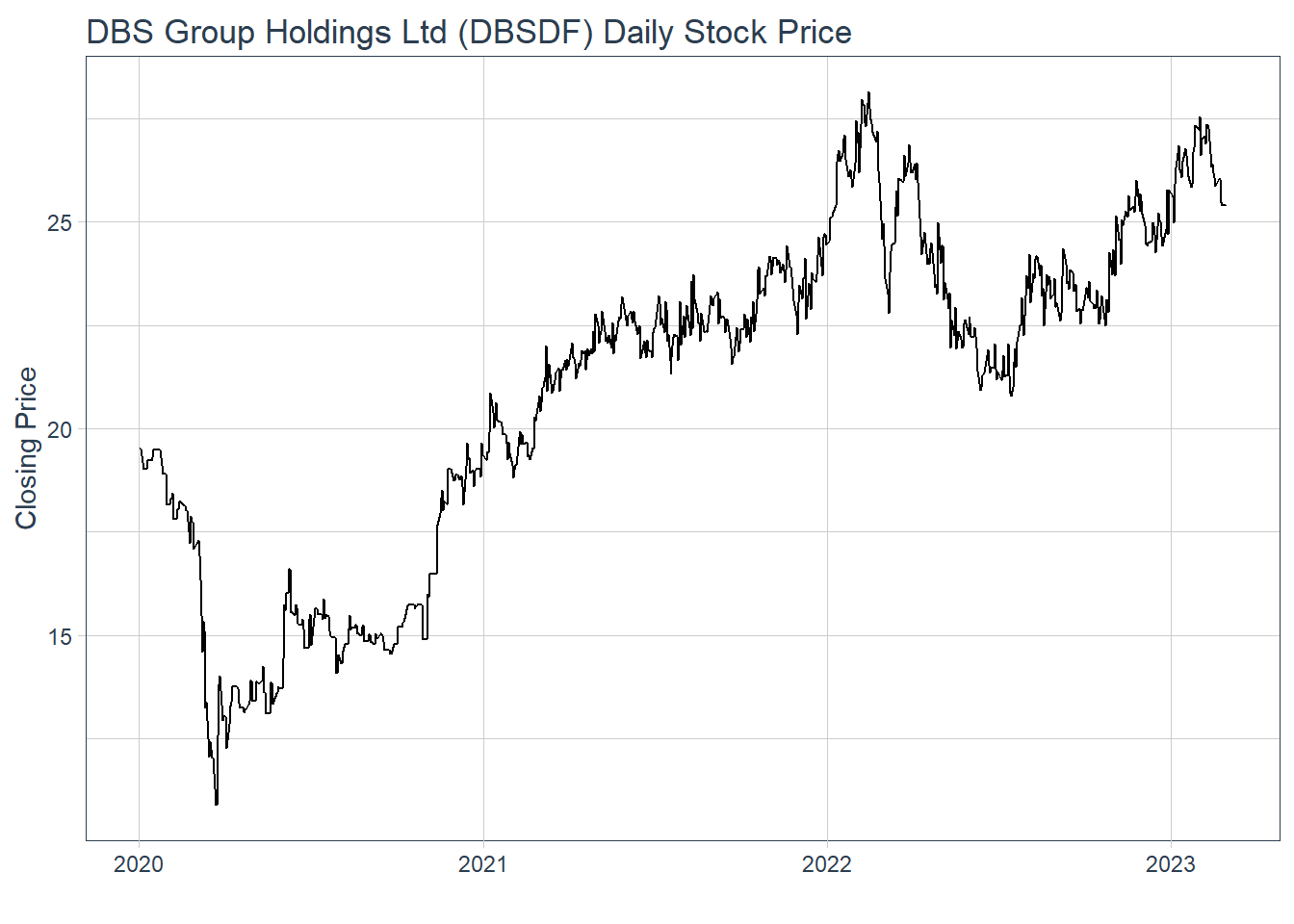
In this section, we will create interactive line graphs for four selected stocks.
Step 1: Selecting the four stocks of interest.
selected_stocks <-  Stock40_daily %>%
  filter (`symbol` == c("C09.SI", "SINGF", "SNGNF", "C52.SI"))
Step 2: Plotting the line graphs by using ggplot2 functions and ggplotly() of plotly R package
p <- ggplot(selected_stocks,
            aes(x = date, y = adjusted)) +
  scale_y_continuous() +
  geom_line() +
  facet_wrap(~Name, scales = "free_y",) +
  theme_tq() +
  labs(title = "Daily stock prices of selected weak stocks",
       x = "", y = "Adjusted Price") +
  theme(axis.text.x = element_text(size = 6),
        axis.text.y = element_text(size = 6))

ggplotly(p)In this section, you will learn how to plot candlestick chart by using geom_candlestick() of tidyquant package.
Before plotting the candlesticks, the code chunk below will be used to define the end data parameter. It will be used when setting date limits throughout the examples.
end <- as_date("2022-03-31")Now we are ready to plot the candlesticks by using the code chunk below.
Stock40_daily %>%
  filter(symbol == "DBSDF") %>%
  ggplot(aes(
    x = date, y = close)) +
  geom_candlestick(aes(
    open = open, high = high,
    low = low, close = close)) +
  geom_line(size = 0.5)+
    coord_x_date(xlim = c(end - weeks(12),
                          end),
                 ylim = c(20, 35),
                 expand = TRUE) +
  labs(title = "DBS Group Holdings Ltd (DBSDF) Daily Stock Price",
       y = "Closing Price", x = "") +
  theme_tq()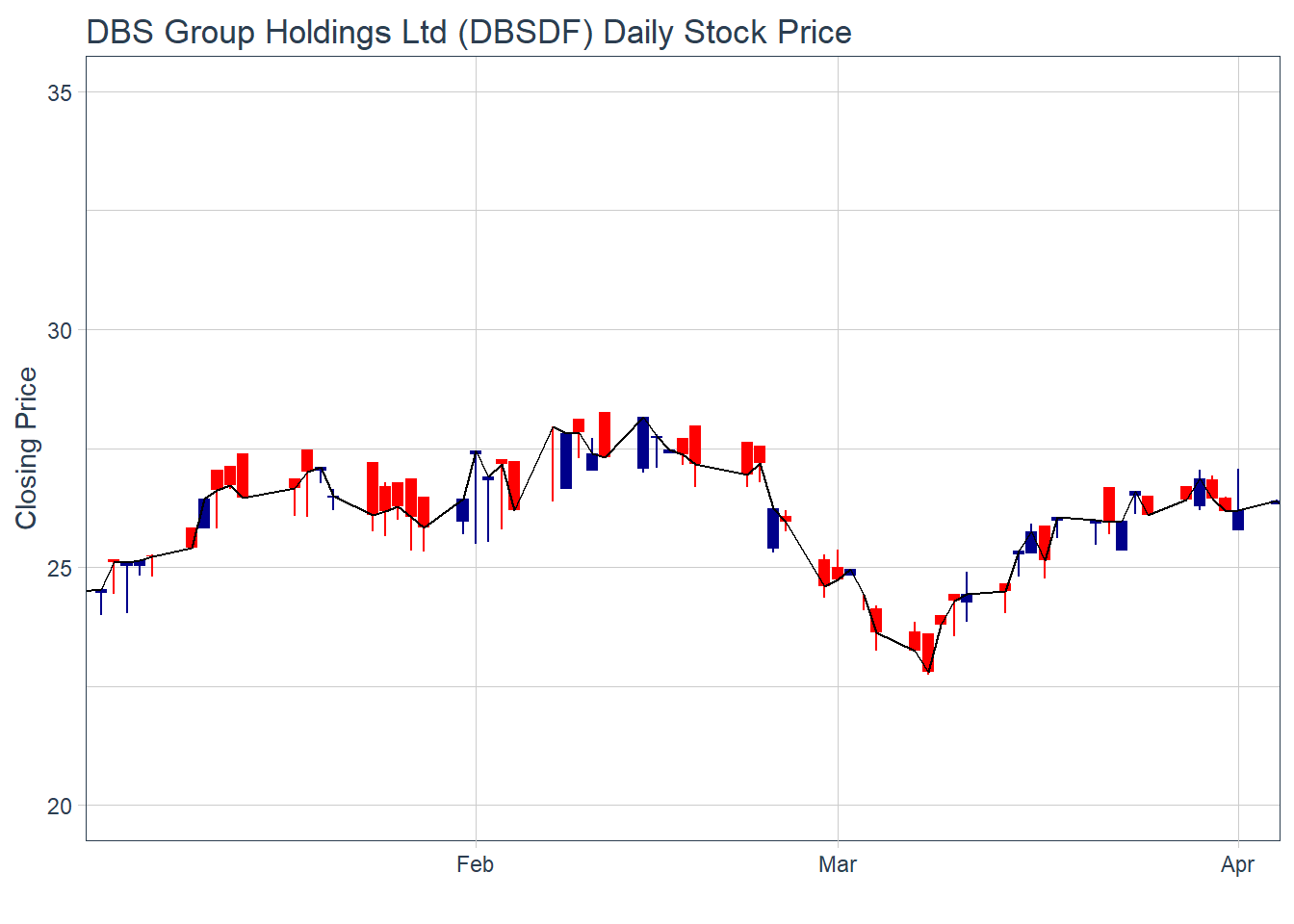
Stock40_daily %>%
  filter(symbol == "DBSDF") %>%
  ggplot(aes(
    x = date, y = close)) +
  geom_candlestick(aes(
    open = open, high = high,
    low = low, close = close)) +
  geom_line(size = 0.5)+
  geom_ma(color = "darkgreen", n = 20) +
  geom_ma(color = "lightgreen", n = 5) +
    coord_x_date(xlim = c(end - weeks(12),
                          end),
                 ylim = c(20, 35),
                 expand = TRUE) +
  labs(title = "DBS Group Holdings Ltd (DBSDF) Daily Stock Price",
       subtitle = "darkgreen = 1-day MA, lightgreen = 5-day MA",
       y = "Closing Price", x = "") +
  theme_tq()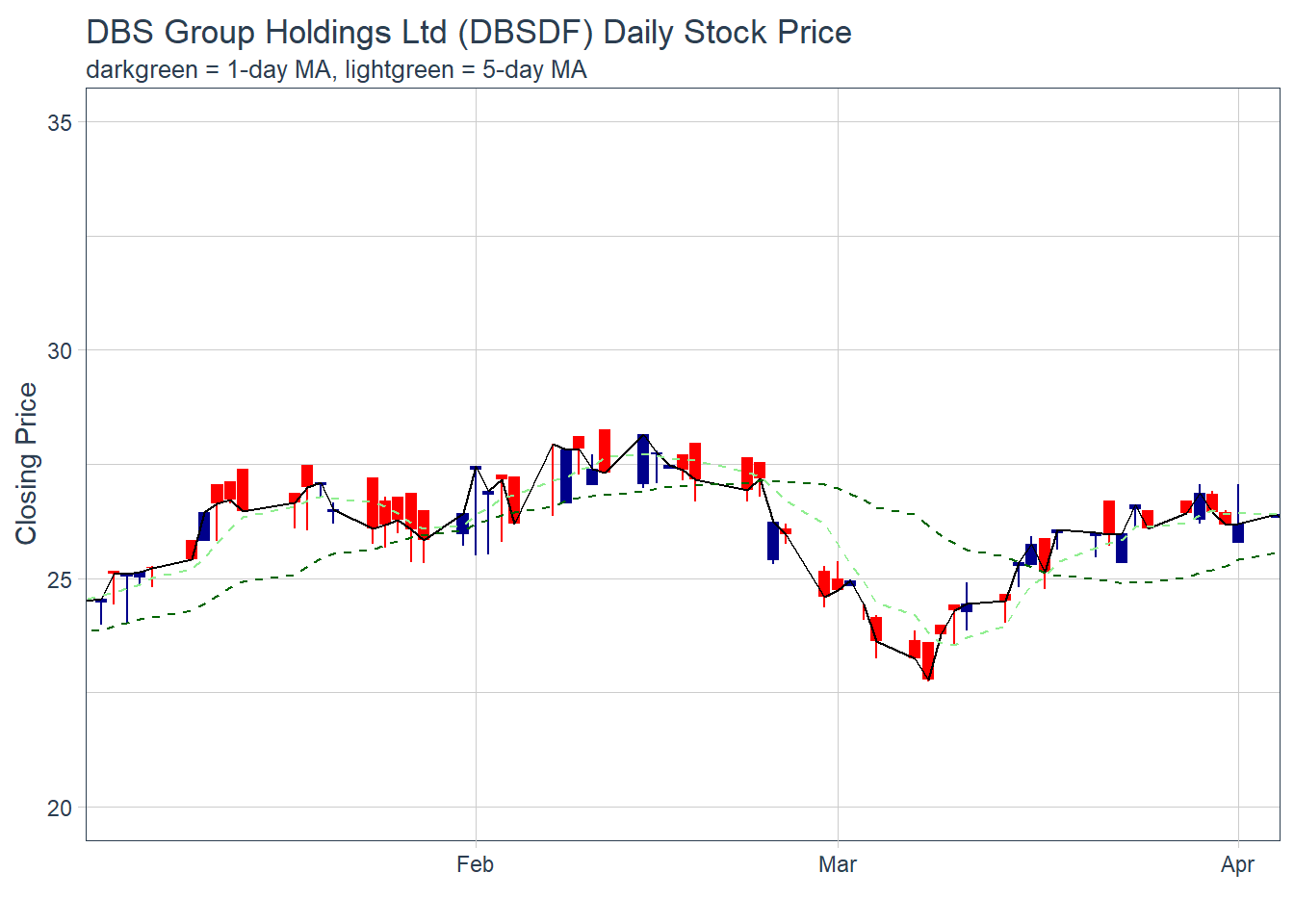
Things to learn from the code chunk:
In this section, you will learn how to plot bollinger bands by using geom_bbands() of tidyquant package.
Stock40_daily %>%
  filter(symbol == "DBSDF") %>%
  ggplot(aes(x=date, y=close))+
  geom_line(size=0.5)+
  geom_bbands(aes(
    high = high, low = low, close = close),
    ma_fun = SMA, sd = 2, n = 20,
    size = 0.75, color_ma = "royalblue4",
    color_bands = "red1")+
    coord_x_date(xlim = c("2020-02-01",
                          "2022-03-31"),
                 expand = TRUE)+
    labs(title = "DBS Group Holdings Ltd (DBSDF) Daily Stock Price",
         subtitle = "dotted red lines = bollinger bands",
         x = "Date", y ="Price") +
theme(legend.position="none")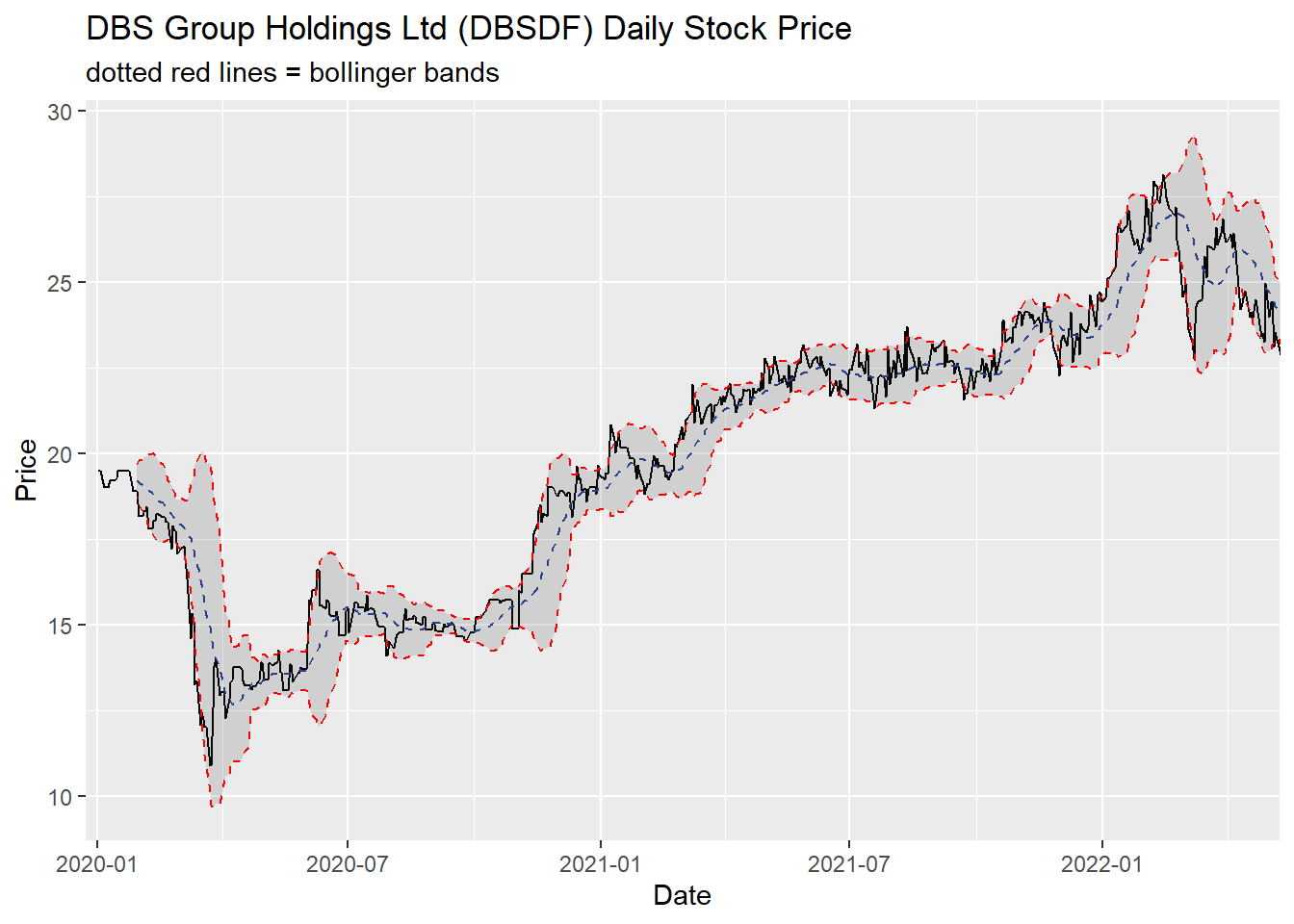
Things you can learn from the code chunk:
First, a candleStick_plot function is written as follows:
candleStick_plot<-function(symbol, from, to){
  tq_get(symbol, from = from, to = to, warnings = FALSE) %>%
    mutate(greenRed=ifelse(open-close>0, "Red", "Green")) %>%
    ggplot()+
    geom_segment(
      aes(x = date, xend=date, y =open, yend =close, colour=greenRed),
      size=3)+
    theme_tq()+
    geom_segment(
      aes(x = date, xend=date, y =high, yend =low, colour=greenRed))+
    scale_color_manual(values=c("ForestGreen","Red"))+
    ggtitle(paste0(symbol," (",from," - ",to,")"))+
    theme(legend.position ="none",
          axis.title.y = element_blank(),
          axis.title.x=element_blank(),
          axis.text.x = element_text(angle = 0, vjust = 0.5, hjust=1),
          plot.title= element_text(hjust=0.5))
}
Credit: I learned this trick from RObservations #12: Making a Candlestick plot with the ggplot2 and tidyquant packages
p <- candleStick_plot("DBSDF",
                      from = '2022-01-01',
                      to = today())
ggplotly(p)